
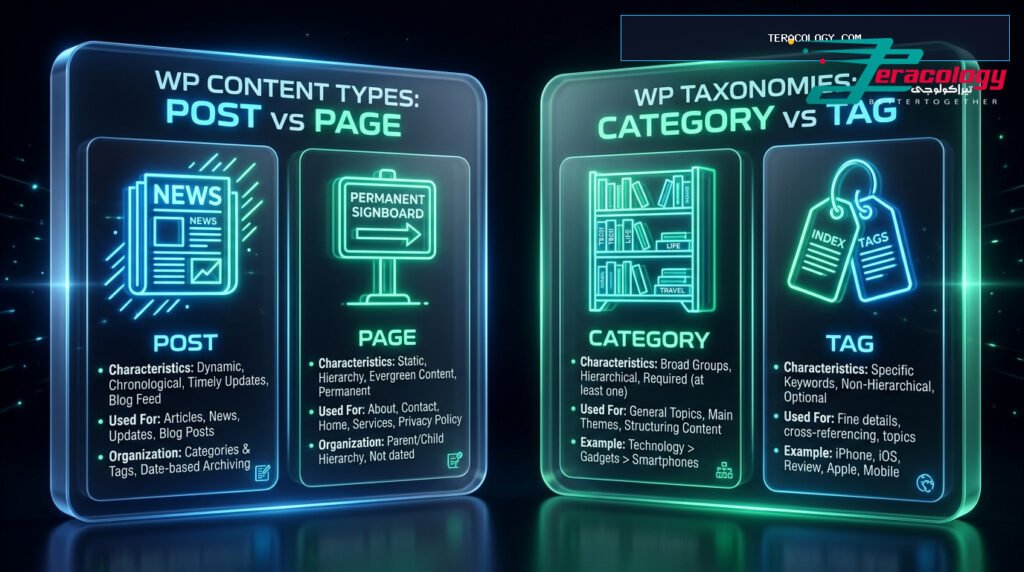
📊 هيكلية لوحة تحكم ووردبريس (WP Admin Architecture)
💡 Executive Summary
The WP Admin dashboard is the mission control center of your WordPress website. This beginner-friendly tour walks you through every main menu item, sidebar tab, settings screen, and core feature to give you 100% confidence managing your site.
Logging into your brand-new WordPress website for the first time can feel overwhelming with its array of sidebar menus, dashboard widgets, and toolbar icons. Understanding how the WP Admin dashboard operates is the single most important skill every non-technical website owner must master.
In this beginner walkthrough by Teracology, we deliver a complete tour of the WordPress backend. We demystify essential admin panels, explain core settings, and show you how to write posts and manage pages effortlessly.
Part 1: The Top Toolbar & Main Sidebar Navigation
1. Top Toolbar (Admin Bar)
The top black bar remains visible whether browsing your frontend website or working inside the backend. It offers quick shortcuts to switch between site view and dashboard, add new posts or media assets, and manage user profile credentials.
2. Main Sidebar Menu
Positioned on the left side of your screen, the main sidebar contains all core controls grouped logically by functionality: Posts, Media, Pages, Comments, Appearance, Plugins, Users, and Settings.
Part 2: Content Management — Posts, Pages & Media
1. Posts Menu
Where you create new blog posts, manage existing articles, and organize content using Categories and Tags. The Gutenberg visual editor enables easy drag-and-drop block formatting.
2. Media Library
Stores all uploaded images, vector graphics, PDFs, and media assets. Allows editing ALT text attributes and image dimensions before inserting assets into pages.
3. Pages Menu
Used to construct static web pages (such as Home, About Us, Contact Us, and Privacy Policy) that remain timeless and unassociated with publish dates.
Part 3: Site Customization, Plugins & User Management
1. Appearance Settings
Controls your visual themes, color palettes, site navigation menus, and widget areas.
2. Plugins Hub
Upload, activate, and configure feature-extension plugins like contact forms or Rank Math SEO.
3. User Roles & Management
Manage user accounts, assign role permissions (Administrator, Editor, Author, Subscriber), and maintain security integrity.
Part 4: Golden General Settings Checklist
Before launching your first article, complete these essential configuration steps under Settings:
- General Settings: Set Site Title, Tagline, Timezone, and Site Language.
- Reading & Writing Settings: Configure homepage display preferences and RSS feed limits.
- Permalink Structure: Select Post Name to ensure clean, keyword-optimized URLs.
❓ WP Admin Dashboard FAQ
Q: How do I access my WP Admin dashboard at any time?
A: Append `/wp-admin/` to your domain URL (e.g., `yourdomain.com/wp-admin/`) and enter your admin username and password.
Conclusion & Next Steps
Mastering the WP Admin dashboard empowers you to build and scale your digital presence with ease. Start exploring your dashboard today with Teracology!