شريكك لبناء حلول ومواقع رقمية
تدعم نمو أعمالك ونجاحها
نجمع بين تصميم المواقع الحديثة، وبرمجة التطبيقات، وإدارة الحملات التسويقية في فريق واحد لمساعدة شركتك على الوصول لعملاء أكثر بكل سهولة ووضوح.
التقنيات ومنصات العمل المعتمدة
قصتنا وطريقتنا في
العمل والإنجاز معك
تأسست تيراكولوجي عام 2020 بهدف حل مشكلة متكررة واجهت أصحاب الشركات: التشتت بين مصمم لا يفهم البرمجة، ومبرمج لا يهتم بالتصميم، وحملات تسويقية بدون نتائج واضحة.
جمعنا فريقاً متكاملاً من المصممين، والمطورين، ومسؤولي التسويق. على مدار أكثر من 5 سنوات و150+ مشروعاً منجزاً في مصر، والسعودية، والإمارات، ومختلف الدول، ندير مشروعك من الفكرة الأولى وحتى الإطلاق الناجح بشفافية والتزام كامل بالمواعيد.
استعرض سابقة أعمالنا
خدماتنا المتكاملة لنمو نشاطك التجاري
مجموعة حلول متكاملة تغطي كل ما يحتاجه مشروعك من التصميم والبرمجة وحتى التسويق.
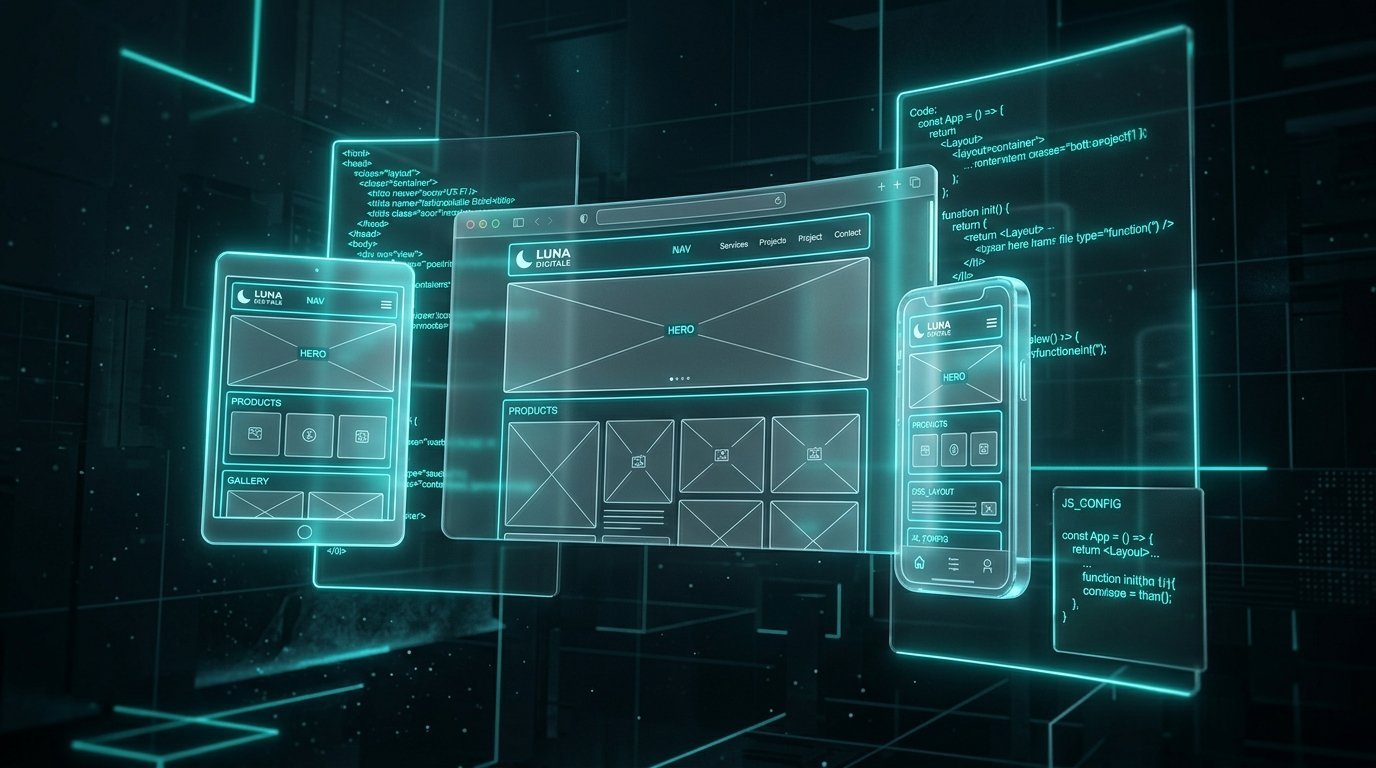
تصميم وتطوير المواقع
نبني مواقع سريعة ومتجاوبة تعكس هوية شركتك بوضوح، وتسهل على عملائك التعرف على خدماتك والتواصل معك بسهولة.

التسويق الرقمي وإدارة الحملات
نخطط وندير حملاتك الإعلانية على جوجل ومنصات التواصل لاستهداف العملاء المهتمين بنشاطك وتحقيق أفضل استفادة من ميزانيتك.
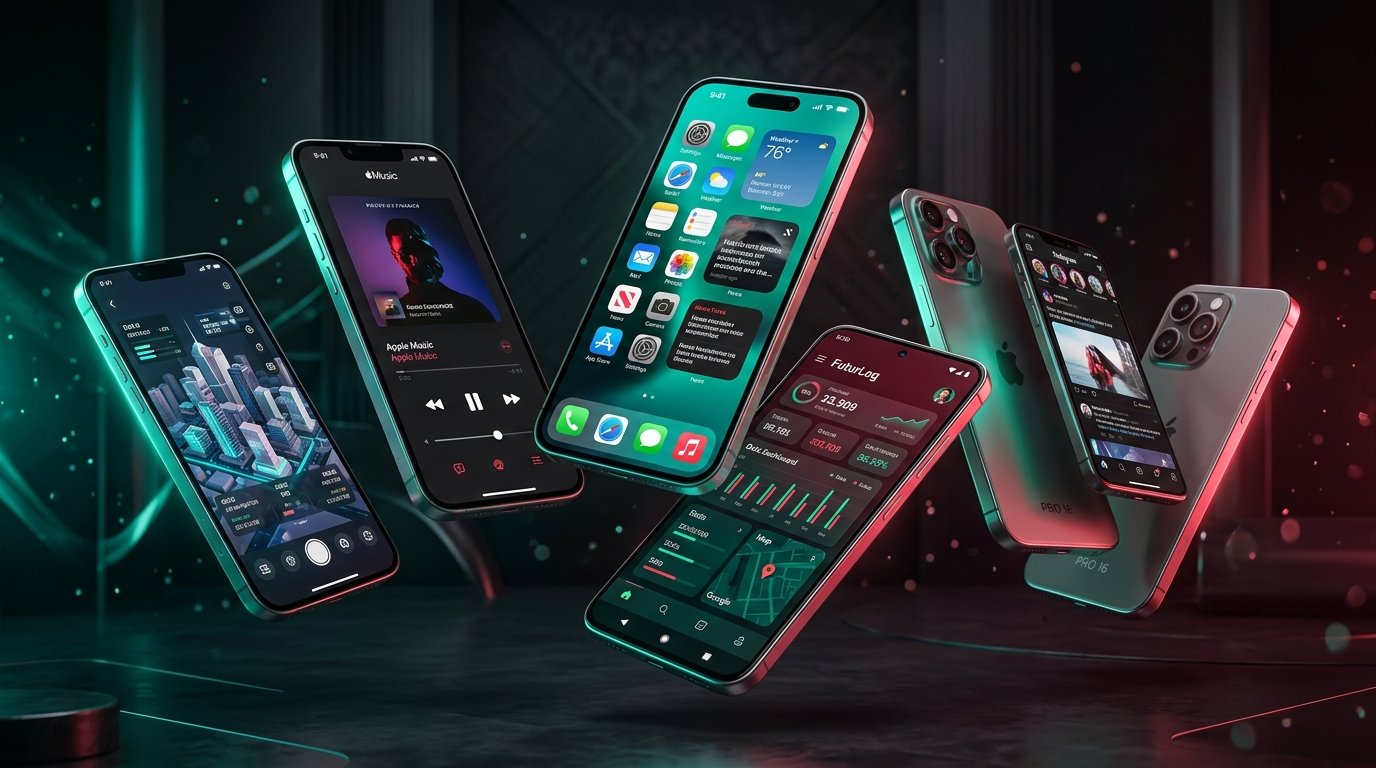
تطوير تطبيقات الجوال
نحول فكرة تطبيقك إلى تطبيق ذكي يعمل بسلاسة وسرعة على هواتف آيفون وأندرويد بتصميم مريح وبنية برمجية موثوقة.
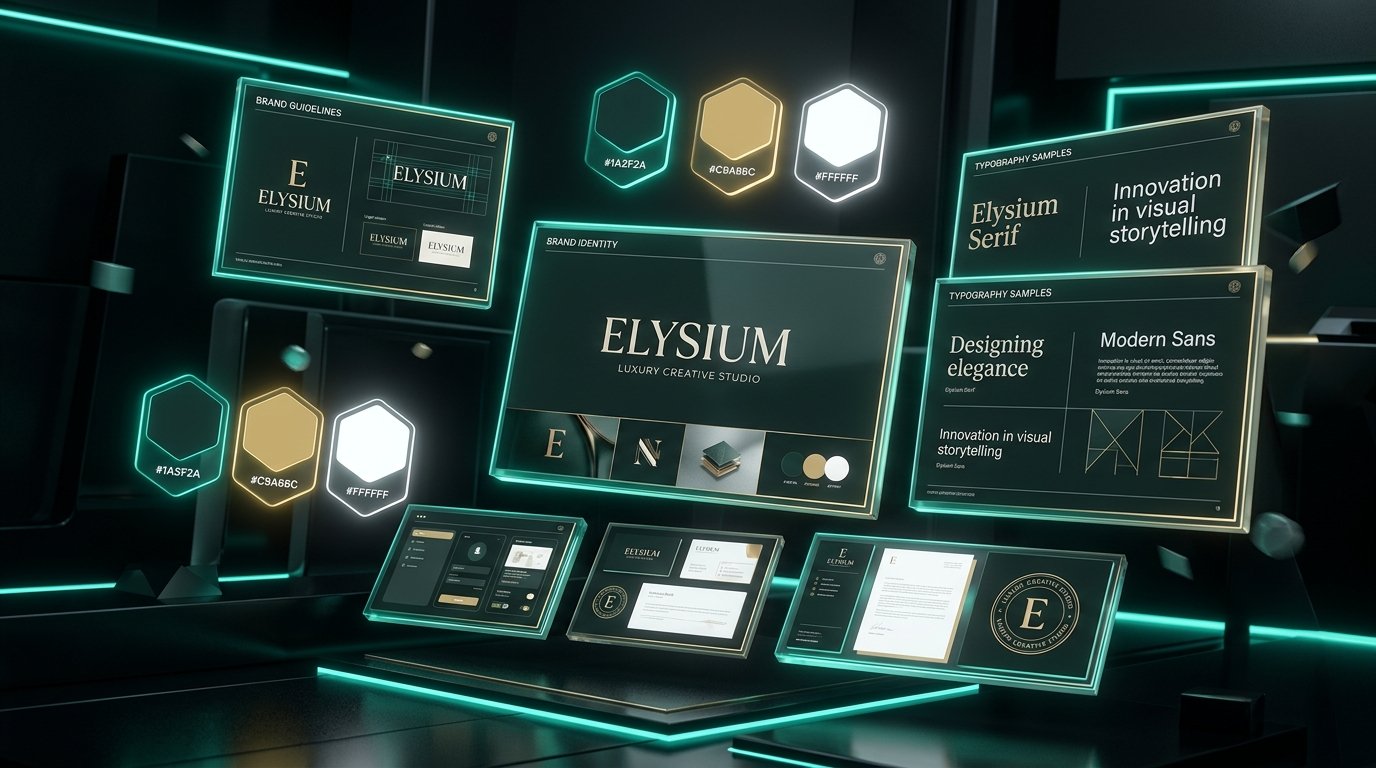
التصميم الجرافيكي للشركات
نبتكر تصاميم جرافيكية مخصصة لملفك التعريفي، ومطبوعاتك، وإعلاناتك لتعزيز حضور علامتك التجارية في كافة المنصات.
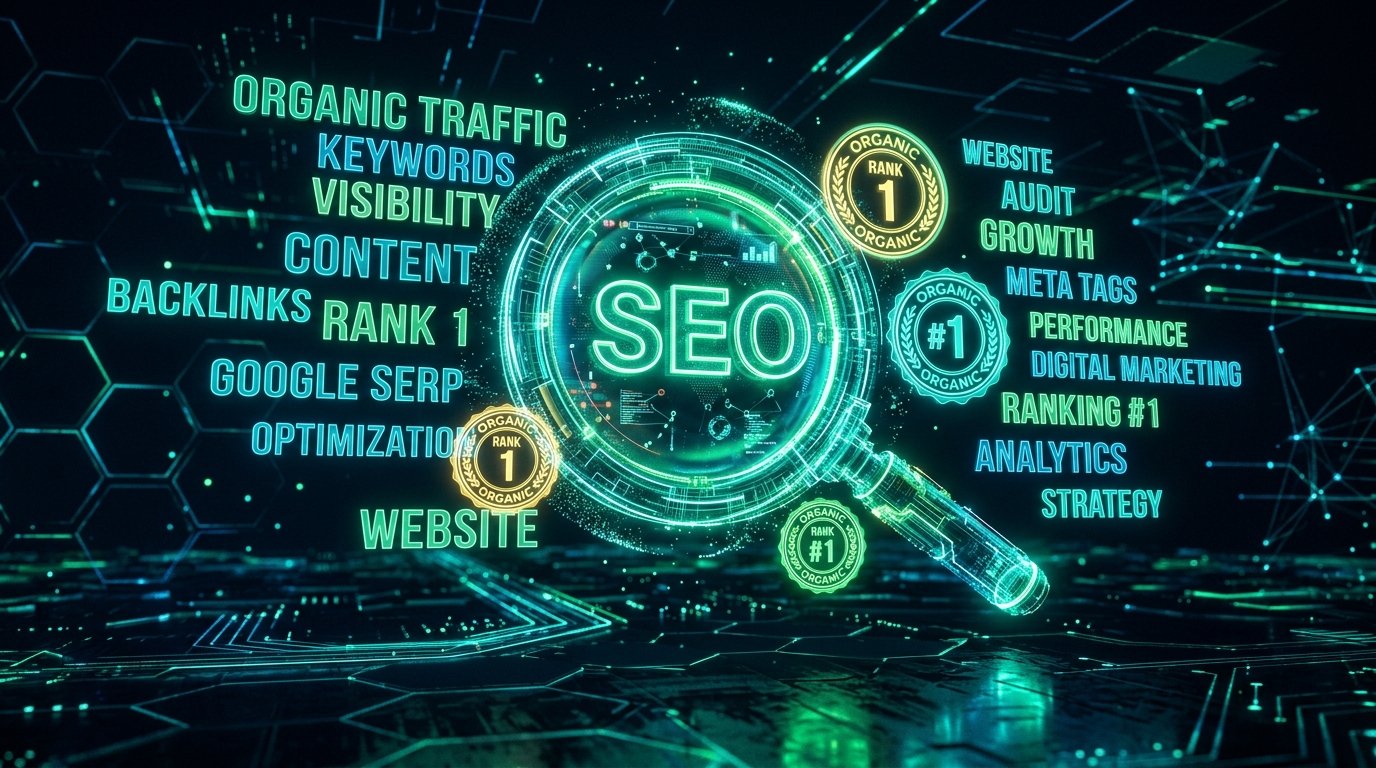
تحسين محركات البحث (SEO)
نهيئ موقعك برمجياً ومحتواه الداخلي وفق إرشادات محركات البحث الرسمية ليظهر أمام عملائك الباحثين عن خدماتك على جوجل.

تطوير المتاجر الإلكترونية
نبني متاجر إلكترونية سهلة وآمنة توفر مسار شراء ميسر لعملائك وتساعدك على إدارة منتجاتك، ومخزونك، ومبيعاتك بكفاءة.

تصميم الهوية التجارية
نصمم شعارات وأدلة هوية بصرية متناسقة تمنح شركتك حضوراً مميزاً وموثوقاً في كافة تعاملاتك المطبوعة والرقمية.

إدارة حسابات التواصل الاجتماعي
نساعدك على بناء وتفعيل حساباتك الاجتماعية من خلال خطط محتوى مدروسة، وتصاميم متميزة، ونشر منتظم يخدم أهدافك التسويقية.

الفيديو والموشن جرافيك
نحول الخدمات والأفكار إلى فيديوهات موشن جرافيك ورسوم متحركة مبسطة تساعد عملاءك على فهم فكرة مشروعك بسرعة وتدعم إعلاناتك.
من الفكرة وحتى تسليم المشروع .. فريق واحد تعتمد عليه
خبرة في بناء مواقع مستقرة، ومتاجر إلكترونية، وتطبيقات ذكية، وحملات تسويقية لأكثر من 20 قطاعاً تجارياً وخدمياً.
طريقة عملنا في 4 خطوات لتسليم مشروعك بنجاح
خطة واضحة ومنظمة تضمن تسليم مشروعك في الموعد المحدد وبأعلى درجات الجودة.
الجلسة الأولى والتخطيط
نستمع لأهدافك ونتعرف على جمهورك ومتطلبات مشروعك، ونضع خطة عمل وجدولاً زمنياً محدداً.
التصميم وتجربة الاستخدام
تصميم واجهات أنيقة وعصرية تعكس هوية نشاطك وتجعل تصفح الموقع أو التطبيق سهلاً ومريحاً لعملائك.
البرمجة والتطوير
برمجة الموقع أو التطبيق ليكون سريعاً، وآمناً، ومتوافقاً تماماً مع جميع الهواتف الذكية والحواسيب.
المراجعة والإطلاق والتدريب
فحص وتجربة كل وظائف المشروع قبل إطلاقه رسمياً، وتدريب فريقك بفيديوهات شرح مبسطة.
لماذا يثق بنا أصحاب الشركات والأعمال؟
نهتم بالقيمة العملية، وسهولة الاستخدام، والالتزام الحقيقي كشريك نجاح معك.
حلول مناسبة لاحتياجك بدقة
نقترح عليك الأسلوب والتقنية الأنسب لطبيعة مشروعك دون تعقيد أو تكاليف غير ضرورية.
إتقان كامل للغة العربية والإنجليزية
تصميم نصوص وواجهات عربية متناسقة وسلسة تناسب اهتمامات وسلوك عملائك في مصر والخليج.
وضوح تام في المواعيد والخطوات
جداول زمنية دقيقة متفق عليها مسبقاً وتواصل مستمر دون أي مفاجآت.
تسليم كامل لملكية الموقع والكود
تستلم كافة صلاحيات الإدارة، وحسابات الاستضافة، وملفات المشروع بالكامل فور الانتهاء.
دعم فني ومتابعة بعد الإطلاق
نستمر معك بعد التسليم لتقديم المساعدة والتأكد من استقرار عمل موقعك وتطبيقك.
شرح وتدريب عملي لفريقك
نزودك بفيديوهات شرح مسجلة توضح لك كيفية تعديل المحتوى وإضافة المنتجات بنفسك بسهولة.
تجارب وتقييمات عملائنا وشركاء النجاح
آراء وتجارب أصحاب الأعمال والشركات الذين تشرفنا بالعمل معهم على مدار السنوات الماضية.
جاهز لبدء مشروعك الرقمي القادم؟
كل مشروع يبدأ بجلسة استشارية لدراسة المتطلبات وتقديم مقترح عمل تفصيلي ومحدد. فريق واحد، عقد واضح، نتيجة مضمونة.
طلب استشارة ومقترح عمل
املأ النموذج أدناه وسنتواصل معك لتقديم مقترح عمل وجدول زمني محدد.