
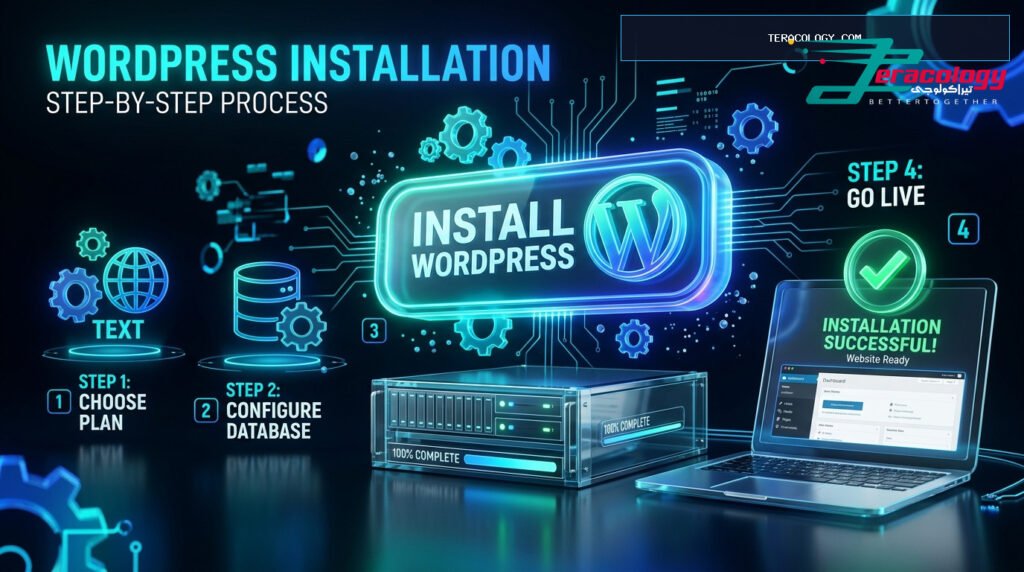
💡 Executive Summary
Installing WordPress is the foundational step to launching your web project. This guide breaks down how to install WordPress using 1-click Softaculous, cPanel auto-installers, local sandbox environments using Local by Flywheel, and manual FTP installations effortlessly.
In the past, setting up a self-hosted website required configuring MySQL databases, running FTP transfers, and editing server configuration files. Today in 2025, learning how to install WordPress takes less than 60 seconds thanks to modern 1-click installers.
In this tutorial from Teracology, we cover the top 4 installation methods: 1-click **Softaculous WordPress installation**, **cPanel setup**, local development using **Local by Flywheel**, and manual FTP database configuration.
Method 1: 1-Click Softaculous Installation (Fastest & Easiest)
Used by over 98% of top hosting providers (including Hostinger, Bluehost, and SiteGround), 1-click auto-installers streamline site deployment into simple steps:
- Log Into Hosting Control Panel: Access your cPanel or hPanel dashboard.
- Locate Auto-Installer: Click on the **Softaculous Apps Installer** or **Auto Installer** icon and select WordPress.
- Fill In Basic Site Details: Choose your domain name, set your site title, admin email, admin username, and a strong password.
- Click Install: Wait 30–60 seconds for the installation wizard to complete and display your WP Admin access link.
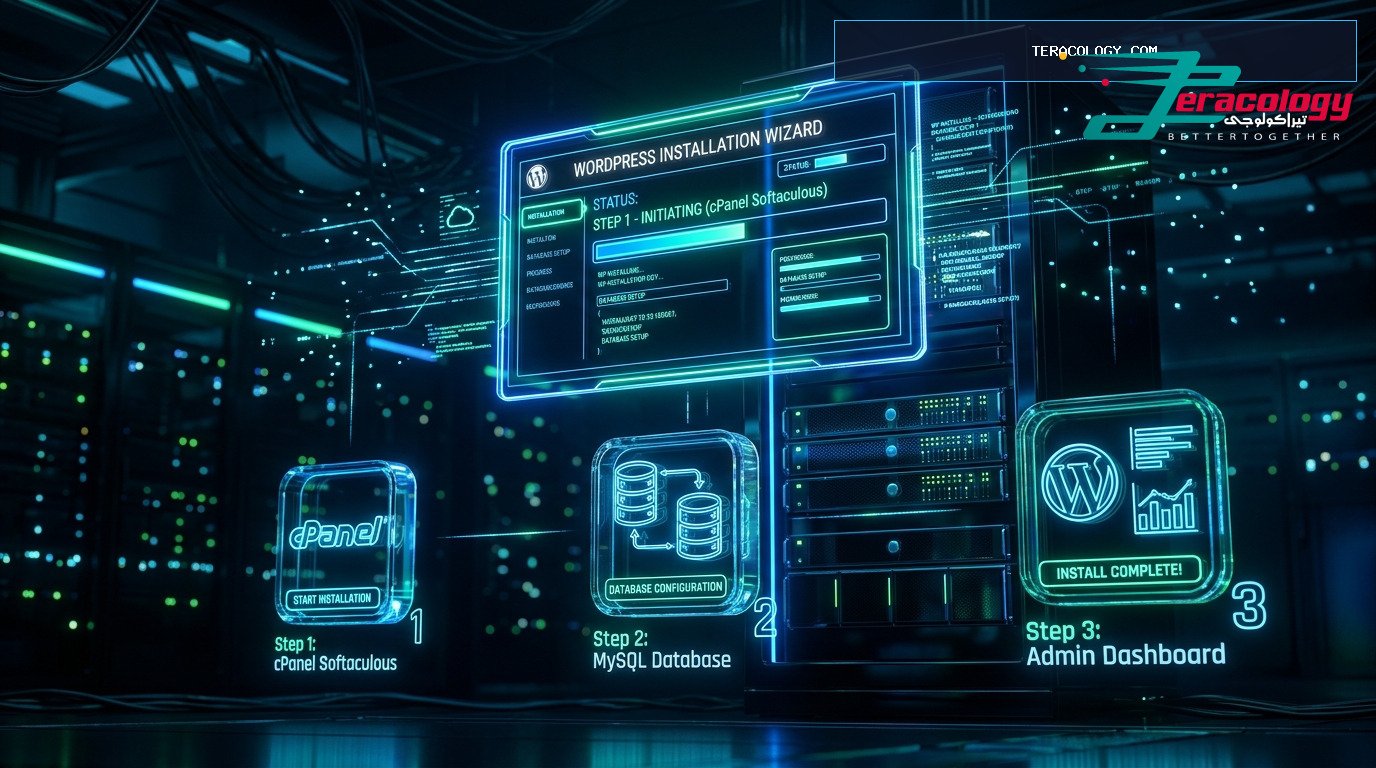
Infographic Diagram: Step-by-Step 1-Click WordPress Installation Guide
Method 2: Installing WordPress Locally on PC (Local by Flywheel)
If you prefer testing designs and practicing website development on your personal computer for free without buying web hosting, **Local by Flywheel** is the premier local development sandbox:
- Download the free Local application from its official site and install it on Windows or Mac.
- Launch the app and click Create a New Site.
- Enter your local website name, preferred admin username, and password.
- Within 30 seconds, your local WordPress environment is ready to launch via the Open Site or WP Admin buttons!
Method 3: Manual Installation via FTP & MySQL Database
Understanding manual FTP installations provides valuable insight into how server architecture operates behind the scenes:
- Download Core Files: Visit `WordPress.org` and download the latest official core ZIP archive.
- Create MySQL Database: Access your hosting cPanel, navigate to MySQL Databases, and create a new database, user, and password.
- Upload Files & Run Installer: Upload unzipped files using FileZilla FTP, then open your domain in a browser to connect database credentials and finish setup.
Comparison Matrix of WordPress Installation Methods
| Method | Difficulty Level | Time Required | Best Recommended For |
|---|---|---|---|
| Softaculous (1-Click) | Very Easy (Beginner) | 1 Minute | Live production websites |
| Local by Flywheel | Very Easy & Free | 2 Minutes | Local testing and sandbox building |
| Manual FTP & MySQL | Moderate to Advanced | 10-15 Minutes | Custom VPS and full server control |
Essential Post-Installation Steps Every Beginner Should Complete
Once you finish learning how to install WordPress and log into your WP Admin dashboard for the first time, complete these golden configuration settings immediately:
- Configure SEO Permalinks: Navigate to Settings -> Permalinks and select Post Name to ensure clean, keyword-rich URLs.
- Set Language & Timezone: Adjust your preferred language and local timezone under Settings -> General.
- Delete Default Sample Data: Remove the default “Hello World!” sample post and unused default themes to maintain clean database architecture.
Conclusion & Final Recommendation
Installing WordPress in 2025 is fast, secure, and beginner-friendly. Use 1-click Softaculous for live websites or Local by Flywheel for offline testing!
Advanced Server Installation: VPS & Cloud Platforms
Beyond beginner-friendly 1-click wizards, experienced web developers and scaling publishers often explore how to install WordPress on cloud infrastructure (such as DigitalOcean, Vultr, or AWS):
This error occurs when database credentials inside `wp-config.php` mismatch your MySQL database user or password. Re-check your cPanel database details and update `DB_NAME`, `DB_USER`, and `DB_PASSWORD` accordingly.
Occurs when uploading feature-rich themes on basic hosting plans. Fix it by inserting `define(‘WP_MEMORY_LIMIT’, ‘256M’);` inside `wp-config.php` to allocate more RAM.
If WordPress was installed over HTTP instead of HTTPS, secure padlock icons may disappear. Installing Really Simple SSL resolves mixed content warnings automatically.
Golden Post-Installation Security Checklist
After completing your WordPress installation, execute these critical post-setup steps recommended by Teracology engineers:
- Refresh Security SALT Keys: Update SALT security keys in `wp-config.php` to invalidate unauthorized cookies.
- Verify HTTPS & SSL Encryption: Ensure your site renders securely with a valid green padlock icon.
- Install & Configure Rank Math SEO: Set up sitemaps and connect Google Search Console from day one.
- Schedule Automated Cloud Backups: Configure daily off-site backups to Google Drive or Dropbox.
- Change Default Database Table Prefix: Replace the default `wp_` prefix with a custom string (e.g., `trc_`) to prevent automated SQL attacks.
❓ Frequently Asked Questions (FAQ)
- Q: Can I migrate my local website from Local by Flywheel to live hosting? A: Yes! Local features a 1-click export function, or you can use the All-in-One WP Migration plugin.
- Q: What is the difference between cPanel and hPanel for WordPress setups? A: Both feature 1-click auto-installers; hPanel offers a modern, streamlined UI tailored for beginners.
Conclusion & Final Step
Mastering how to install WordPress lays the foundation for endless digital growth. Deploy your site today with confidence!
WordPress Multisite Installation Guide
If you plan to launch a network of blogs, multisite stores, or sub-brand platforms, learning how to install WordPress with Multisite Network features enabled allows you to manage dozens of sites from a single centralized admin panel:
Enabling WordPress Multisite:
- Add `define(‘WP_ALLOW_MULTISITE’, true);` into your `wp-config.php` configuration file.
- Refresh your dashboard and navigate to `Tools -> Network Setup`.
- Choose your network architecture (Subdomains vs Subdirectories) and click Install.
- Copy the generated configuration code snippets into `wp-config.php` and `.htaccess`.
Nginx vs Apache Web Server Optimization for WordPress
When running a WordPress installation on high-traffic hosting, server choice heavily influences performance:
Apache web servers utilize `.htaccess` rules for permalink rewriting, whereas Nginx handles thousands of concurrent connections efficiently via `nginx.conf` blocks, delivering double the loading speed for enterprise portals.
Ongoing Maintenance & Post-Installation Updates
To preserve security and server stability following your WordPress setup, enable automated minor core updates and audit installed plugins regularly to ensure PHP 8.2+ compatibility.
Post-Installation Speed Optimization Checklist
To ensure your website loads in under 1 second and scores 90+ on Google PageSpeed Insights immediately following your WordPress installation, implement these performance tweaks:
- Enable Page Caching: Install a caching engine like LiteSpeed Cache or WP Optimize to serve pre-rendered HTML snapshots instantly.
- Image Compression & WebP Conversion: Enable automated WebP image conversion to reduce media file size by 70% without quality loss.
- Server Compression (Gzip / Brotli): Compress CSS and JavaScript assets before transmitting them to site visitors.
Final Summary & Next Steps for Beginners
Following this tutorial guarantees a secure, high-performance WordPress setup tailored for long-term SEO success. Explore our next guide on Teracology to master hosting and domain management!
Database Security Best Practices After Installation
Securing your MySQL database architecture serves as your primary defense layer immediately after completing a cPanel WordPress installation. Follow these proven database security guidelines:
- Use Strong Database Credentials: Generate complex 32-character passwords containing symbols, numbers, and uppercase characters for your database user.
- Limit Database Permissions: Restrict your database user privileges strictly to required operations (SELECT, INSERT, UPDATE, DELETE, CREATE, DROP).
- Ensure Modern Database Engine Versions: Run MySQL 8.0+ or MariaDB 10.5+ database servers to unlock maximum query performance and security patches.
Comprehensive FAQ on Installing WordPress
- Q: Can I install WordPress without a domain name? A: Yes! You can install WordPress locally on your computer using Local by Flywheel or use temporary server IP preview URLs provided by your host.
- Q: What should I do if the installation screen hangs? A: Check your server PHP execution time limits (`max_execution_time`) and increase the value to 300 seconds inside `php.ini`.
Step-by-Step Troubleshooting for Common Installation Failures
Should you encounter any unexpected issues while following this guide on how to install WordPress, reference these quick solutions:
- White Screen of Death (WSoD): Enable debugging by setting `define(‘WP_DEBUG’, true);` inside `wp-config.php` to display exact PHP error tracebacks.
- HTTP 500 Internal Server Error: Rename your `.htaccess` file to `.htaccess_old` to reset server rewrite rules automatically.
- File Permission Denial (403 Forbidden): Ensure server directory permissions are configured to `755` and file permissions to `644`.
By relying on these proven setup procedures, your WordPress installation remains resilient, secure, and ready for long-term digital growth!
Mastering the installation of WordPress across various environments—whether utilizing 1-click Softaculous auto-installers in cPanel, building local sandbox sites with Local by Flywheel, or deploying custom VPS cloud servers—grants non-technical beginners total confidence. Completing key post-installation tasks, such as configuring permalinks to Post Name and setting up automated backups, guarantees a rock-solid foundation for future content creation and web performance optimization.
❓ WordPress Installation FAQ
Q: Do I need to pay license fees to download WordPress?
A: No, WordPress core software is 100% free open-source software available at WordPress.org.
Q: What should I do if I forget my admin password?
A: Click “Lost your password?” on the login screen, or reset it with a single click inside Softaculous.